
How to Make a NEON AI Dance on Your Phone
Create a NEON AI dance on iPhone or Android: prepare two photos, upload them in a mobile browser, choose quality, generate, and save the MP4.
Last updated: 2026-10-21
You can make a NEON AI dance on an iPhone or Android phone without installing an app. Use an up-to-date version of Safari, Chrome, or another modern browser, prepare two clear photos, and keep a stable connection while the images upload.
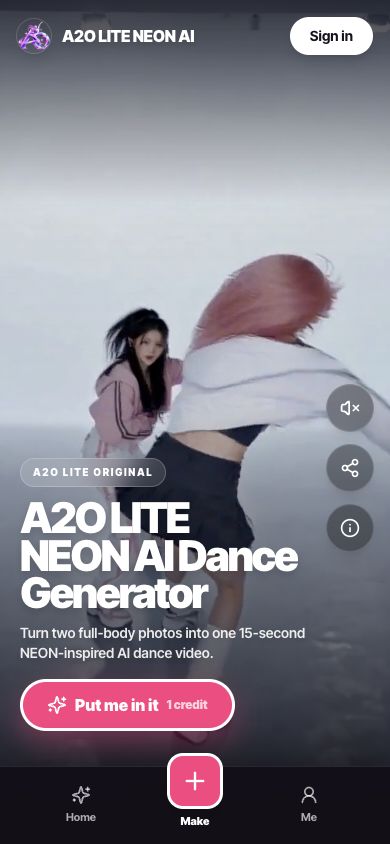
Open the site in a mobile browser and tap “Put me in” or the Make button.
What you need
- Two separate photos, with one consenting adult clearly visible in each image.
- JPG, PNG, or WebP files. Each file may be up to 10 MB; large supported images are compressed in the browser.
- A current mobile browser with access to your photo library or files.
- An account and enough credits: 480P uses 1 credit and 720P uses 2 credits.
- A stable connection for uploading the photos and downloading the finished MP4.
The two people do not need to be photographed together. A couple or two friends can each send one photo from a different place.
Step 1: choose mobile-friendly source photos
Use one well-lit, front-facing, full-body photo for each dancer. Keep the face, hands, legs, feet, and outfit visible. Avoid screenshots with interface controls, group photos, strong filters, motion blur, and pictures cropped at the knees or ankles.
Put the person who should appear first in the Opening dancer slot. Put the partner in the Second dancer slot. For a deeper checklist, read the photo selection guide.
Step 2: check the file format
The uploader accepts JPG, PNG, and WebP. Some iPhones save camera photos as HEIC or HEIF, which the current uploader does not accept directly.
If an iPhone photo is HEIC:
- Use the Photos share menu with a trusted conversion workflow, or use Apple's Shortcuts app to convert the image to JPEG.
- For future camera photos, you can choose Settings → Camera → Formats → Most Compatible if you prefer JPEG capture.
- Avoid repeatedly sending the image through messaging apps, because aggressive compression can blur the face and clothing.
Most Android camera photos are JPG. WebP images are also accepted. If the browser cannot read a file selected from a cloud provider, download it to the device first and select the local copy.
Step 3: open the generator
Go to the homepage and tap Put me in. The mobile upload sheet shows two photo slots and the quality choices.
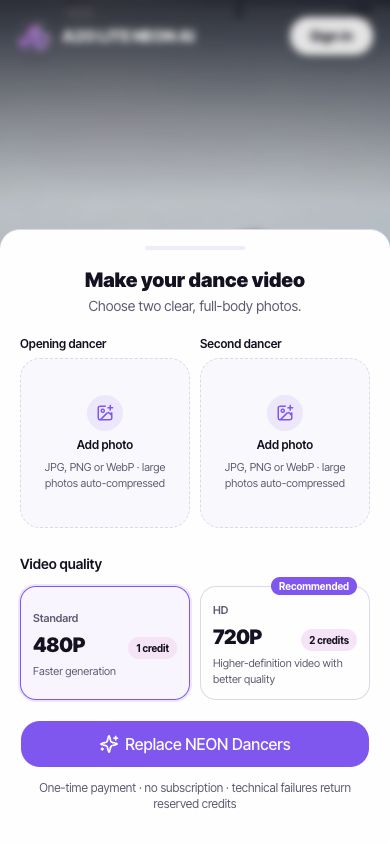
Add the opening dancer and second dancer, then choose Standard 480P or HD 720P.
When your browser asks for photo access, choose only the images you intend to upload if your phone offers limited-library access. The site does not need access to your camera, microphone, contacts, or location.
Step 4: add the two photos
Tap the first Add photo area and choose the opening performer. Repeat for the second performer. Review both previews before continuing; accidentally reversing the files changes who appears first.
Large supported images are resized locally when needed. Keep the browser tab open until both previews appear. If one slot remains empty, remove that selection and choose the file again.
Step 5: choose 480P or 720P
- 480P uses 1 credit. It is the lower-cost choice for testing a new pair of photos.
- 720P uses 2 credits. It produces a clearer final file for sharing, but it cannot repair a dark, cropped, or heavily filtered source photo.
Both options use the same 15-second, 16:9 dance structure. Read the 480P versus 720P comparison if you are unsure.
Step 6: sign in and generate
Tap Replace NEON Dancers. If you are not signed in, the site will ask you to continue with an available sign-in method. Return to the generator after authentication, confirm that you have permission to use both photos, and submit the generation.
Generation normally takes several minutes, but demand and provider processing can vary. You can check the task later under My Videos. A confirmed technical failure returns the credits reserved for that task.
Step 7: save the finished MP4
When the task succeeds, preview the entire video before downloading.
On iPhone
Tap Download. Depending on the browser and iOS version, the MP4 may open in a preview or appear in Safari's Downloads list. Use the Share button to save it to Files or, when offered, Save Video to Photos. If Photos does not appear, save to Files first and share the local file into Photos.
On Android
Tap Download and allow the browser to save the file. It normally appears in Downloads and may also be visible in Google Photos or the device gallery after media scanning. If you cannot find it, open the Files app and check the browser's download folder.
Mobile troubleshooting
The photo picker closes without selecting anything
Check the browser's photo permission and try selecting from Files instead of the photo library. If the image lives only in iCloud or another cloud service, download it locally first.
The image format is rejected
Convert HEIC or HEIF to JPEG. Do not simply rename the extension; the underlying file must actually be converted.
Uploading stalls
Switch from an unstable mobile connection to reliable Wi-Fi, keep the tab in the foreground until previews appear, and avoid uploading while the phone is in low-power or data-saving mode.
The download opens but does not save
Use the browser's Share or Download control, save the file to Files, then move or share it to the photo library. Browser menu labels differ by operating-system version.
The result is horizontal
That is expected. The current output is a 16:9 MP4 that preserves the prepared dance framing. Use the TikTok, Reels, and Shorts publishing guide to place it safely inside a vertical canvas.
Frequently asked questions
Is there an iPhone or Android app?
No app is required. The current product runs in a mobile browser.
Can I take a photo inside the generator?
Choose an existing image from the photo library or files. A deliberately framed full-body photo usually works better than an improvised close-up.
Can I close the browser during generation?
After the task has been accepted, it remains associated with your signed-in account. Check My Videos later, but wait until the upload and submission have completed before closing the tab.
Are the two photos public?
They are not posted to a public gallery. They are sent to the processing provider for the requested generation. See the privacy policy for the current retention and processing terms.
Ready to start? Open the mobile generator or see ideas for a couple or best-friend AI dance.